Creating A New User
With the Access App open, navigate to the Users tab as shown below.
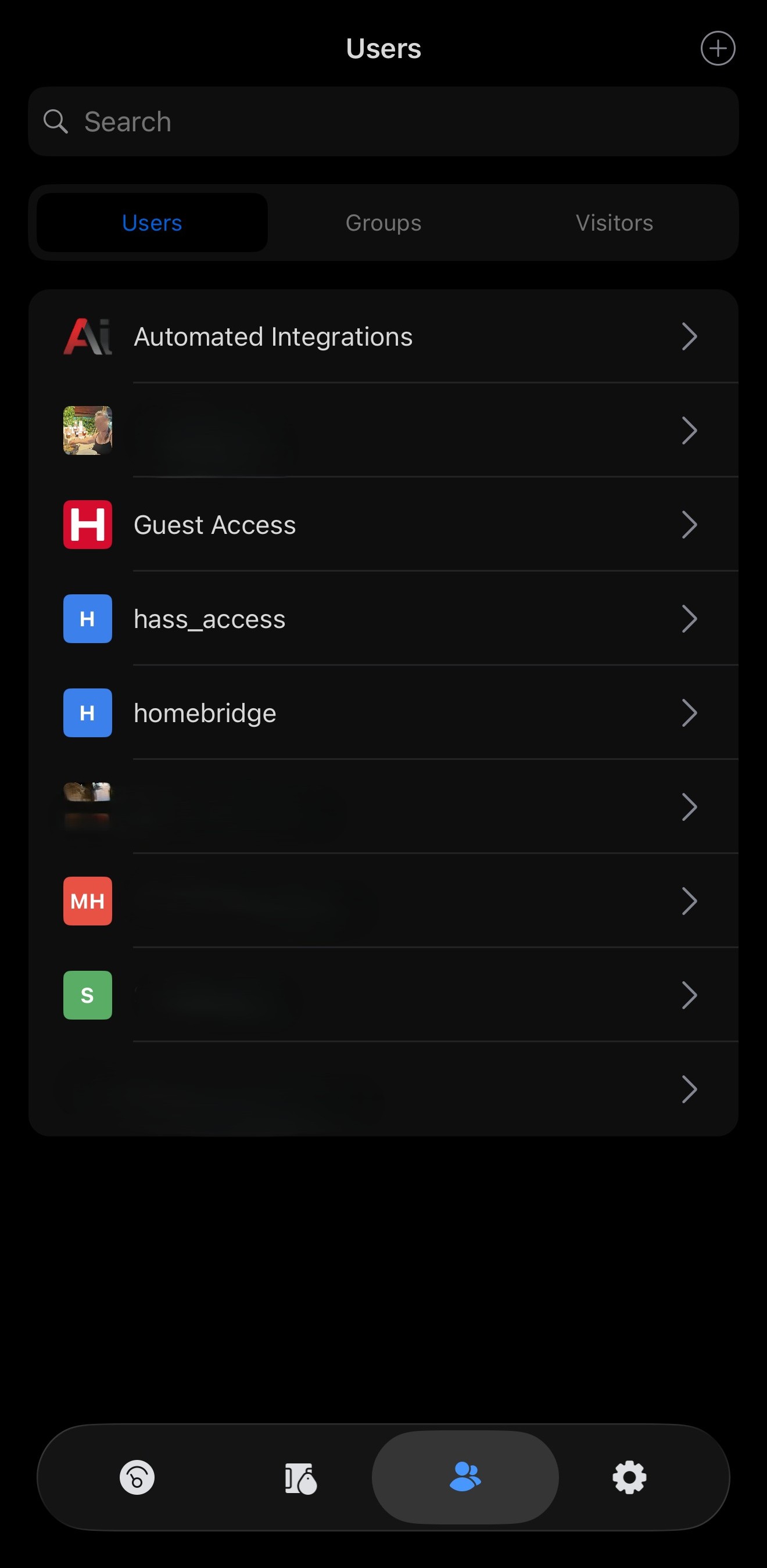
In the top-right corner of the page, you will see a small “+” icon inside a circle. Click this icon to open the Create menu.
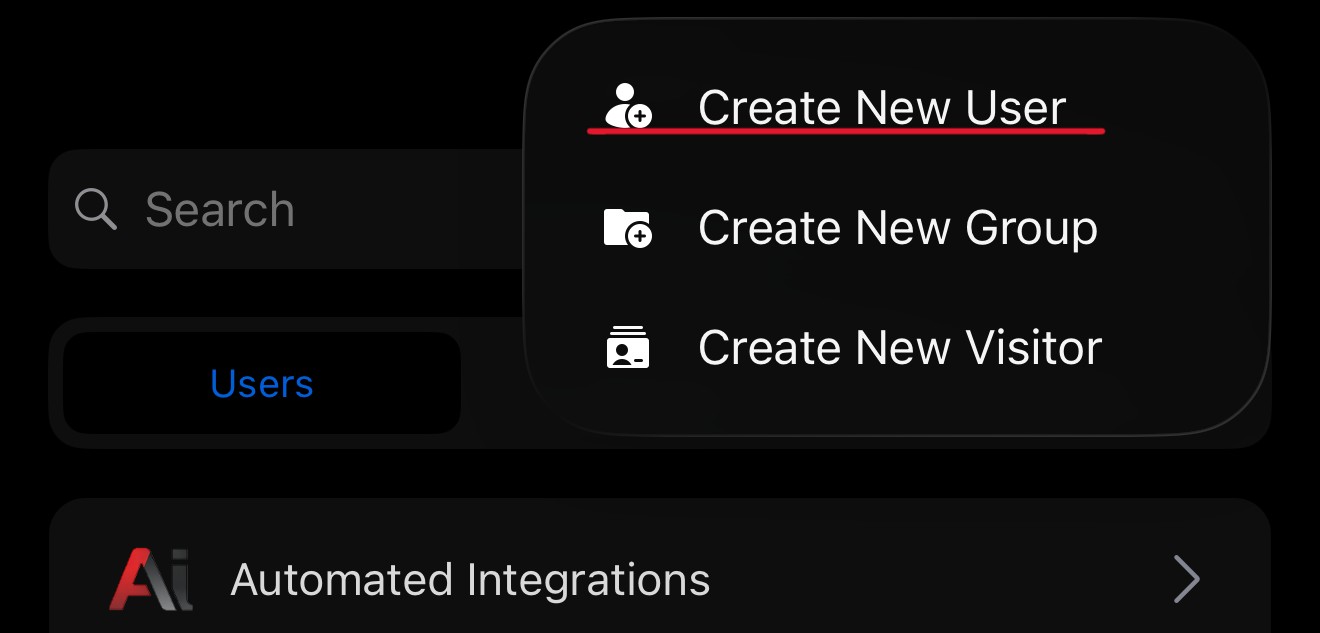
You will then be prompted to enter the following information:
-
First Name
-
Last Name
-
Authentication Method
For most users, the recommended authentication method is PIN, which allows the user to access the system using their assigned PIN code.
The Licence Plate authentication option is only applicable if your system is equipped with Access-Based Number Plate Recognition (ANPR) cameras.
Once these fields are completed, you can proceed with saving the new user.
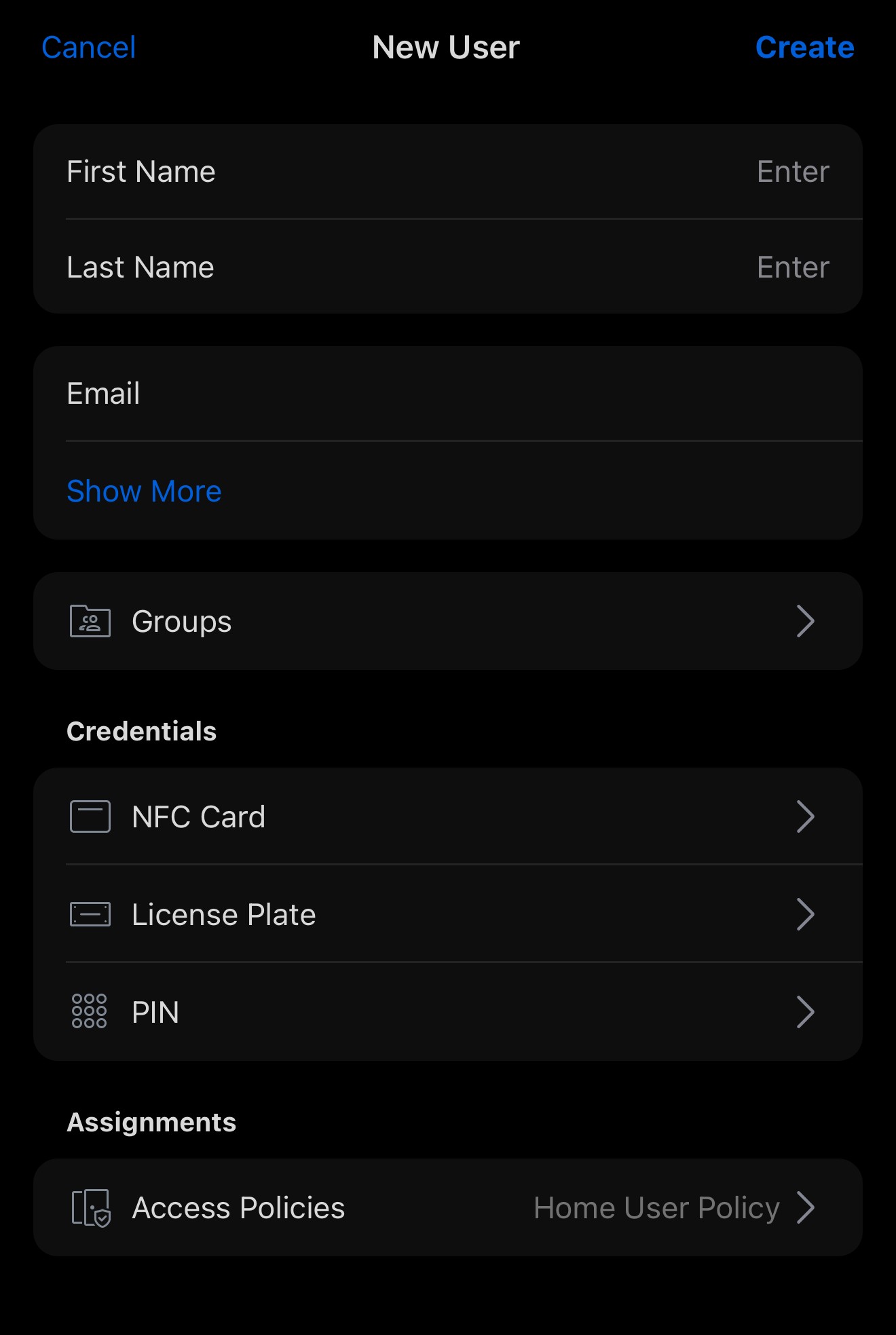
You can also assign an NFC card or tag to a user for contactless access.
This can be done using common NFC-enabled items such as:
-
NFC access cards
-
NFC key fobs
-
Apple AirTags or similar NFC-enabled devices
-
Other compatible NFC cards or keys you may already own
To pair an NFC device with the system, you must be physically near the intercom or NFC reader.
When prompted during setup, simply present the NFC card or device to the reader to pair it with the user account.
Once paired, the NFC device can be used to unlock the system by tapping it on the reader.
NFC access can also be used alongside other authentication methods, such as PIN codes or licence plate recognition, giving users multiple ways to gain access.