
Scheduling a Door to Auto Open
In some circumstances you may want the gates to open and close automatically in the morning or evening, for example during events or scheduled access times. This can be achieved using the built-in Scheduler/Policies.
If you go to the Devices tab at the bottom of the page (second from the left).
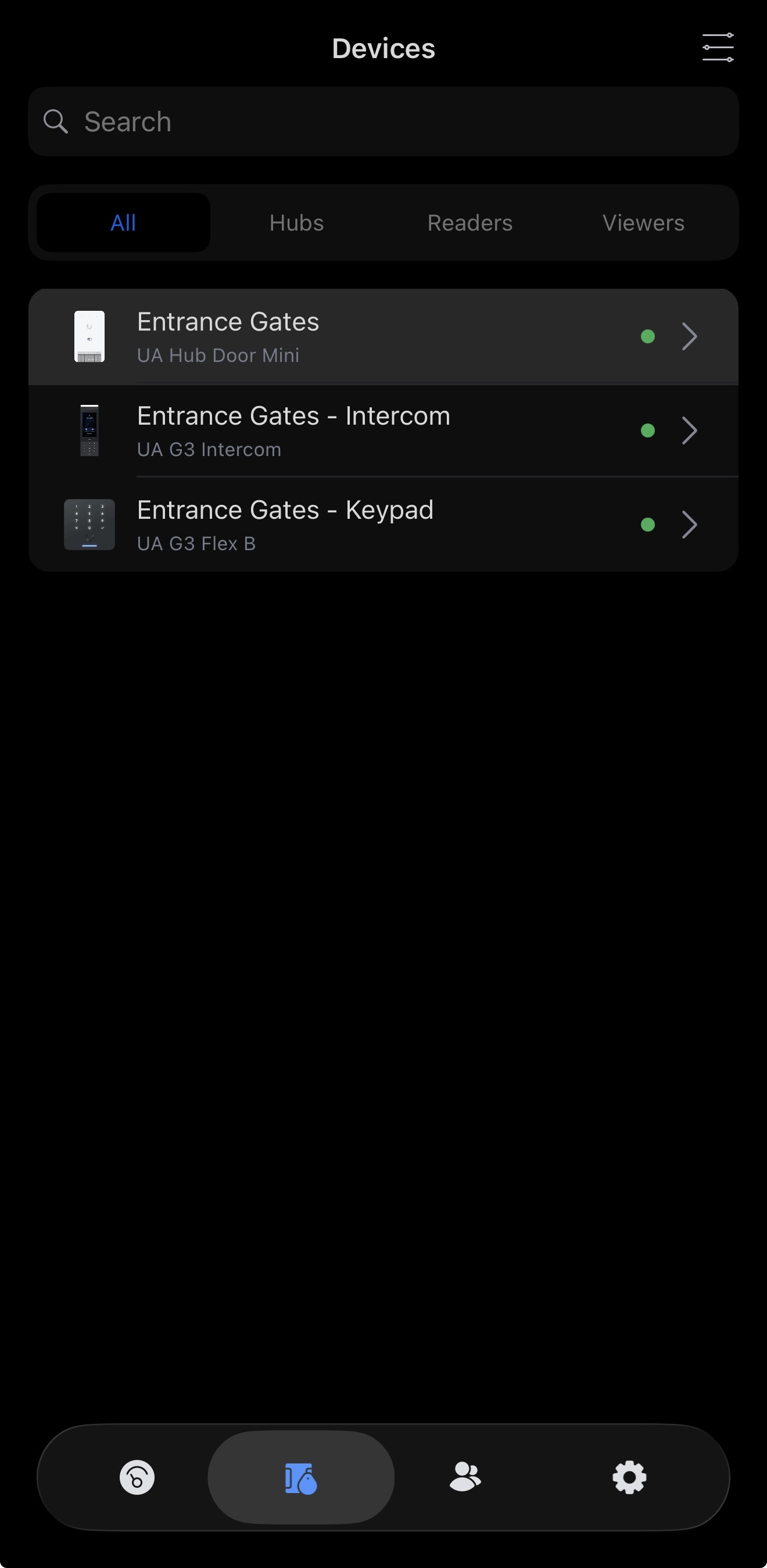
Then select the Door/Gate Hub that is responsible for the gate or door you want to control.
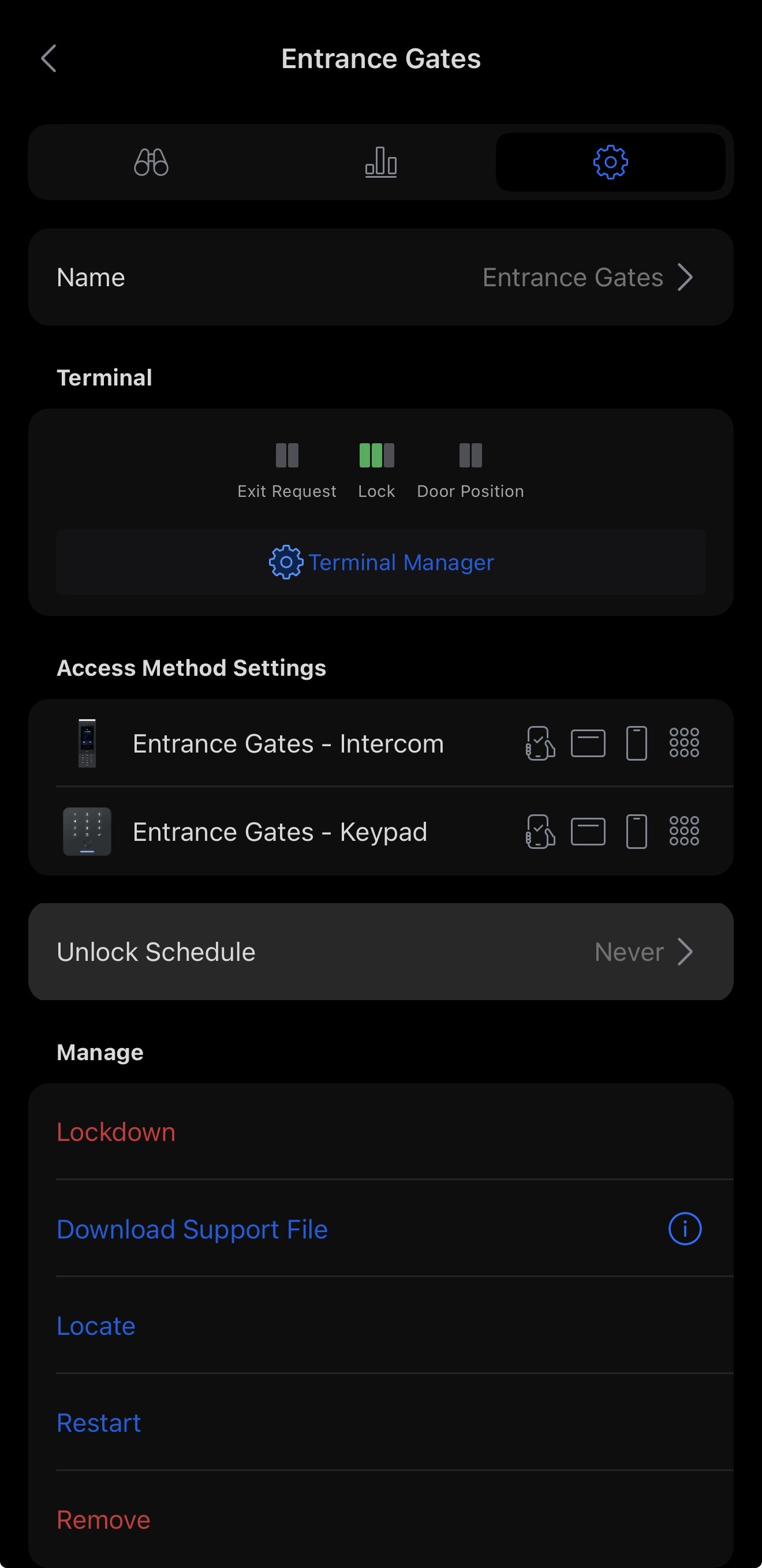
If you then proceed to the cog icon in the top-right corner, you will be presented with a more technical configuration view of the system. From here, we are only interested in the “Unlock Schedule” option. Select this.
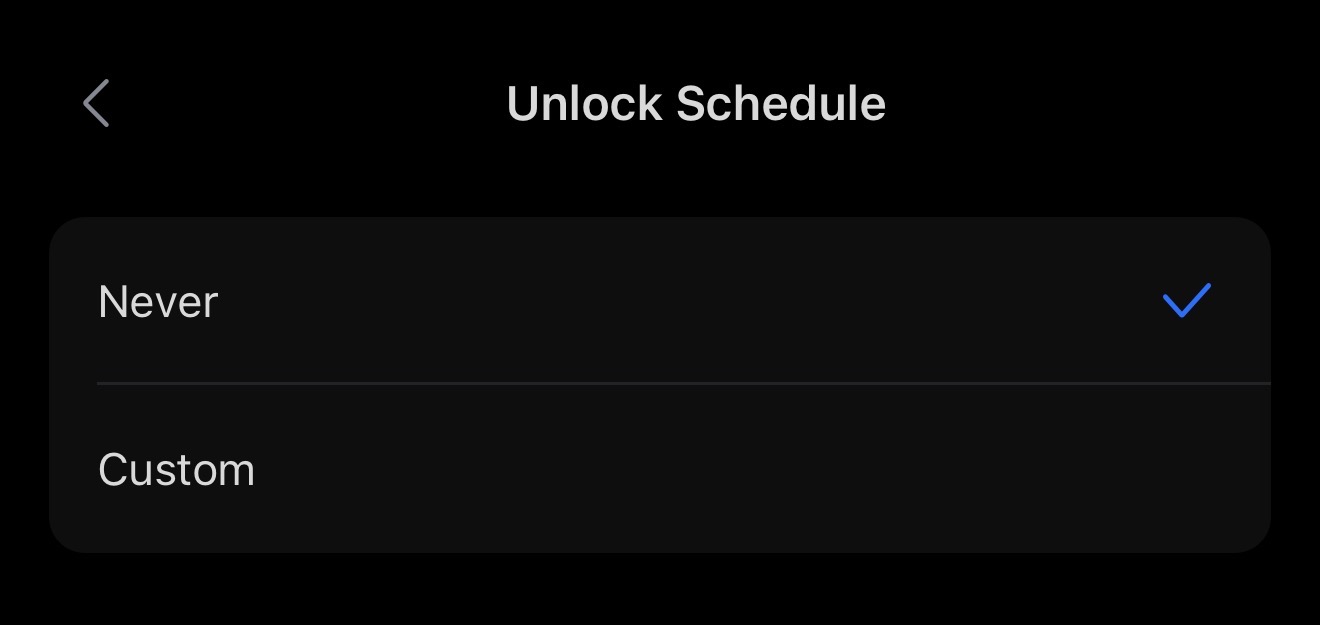
You will then want to select “Custom” to allow you to view and edit the scheduler.
You will see a grid-based schedule that is fully editable. By clicking on empty sections of the timeline you can add periods of unlock, or if you wish to remove a section you can click on it and select Delete.
(Green indicates unlocked, Grey indicates locked/closed.)
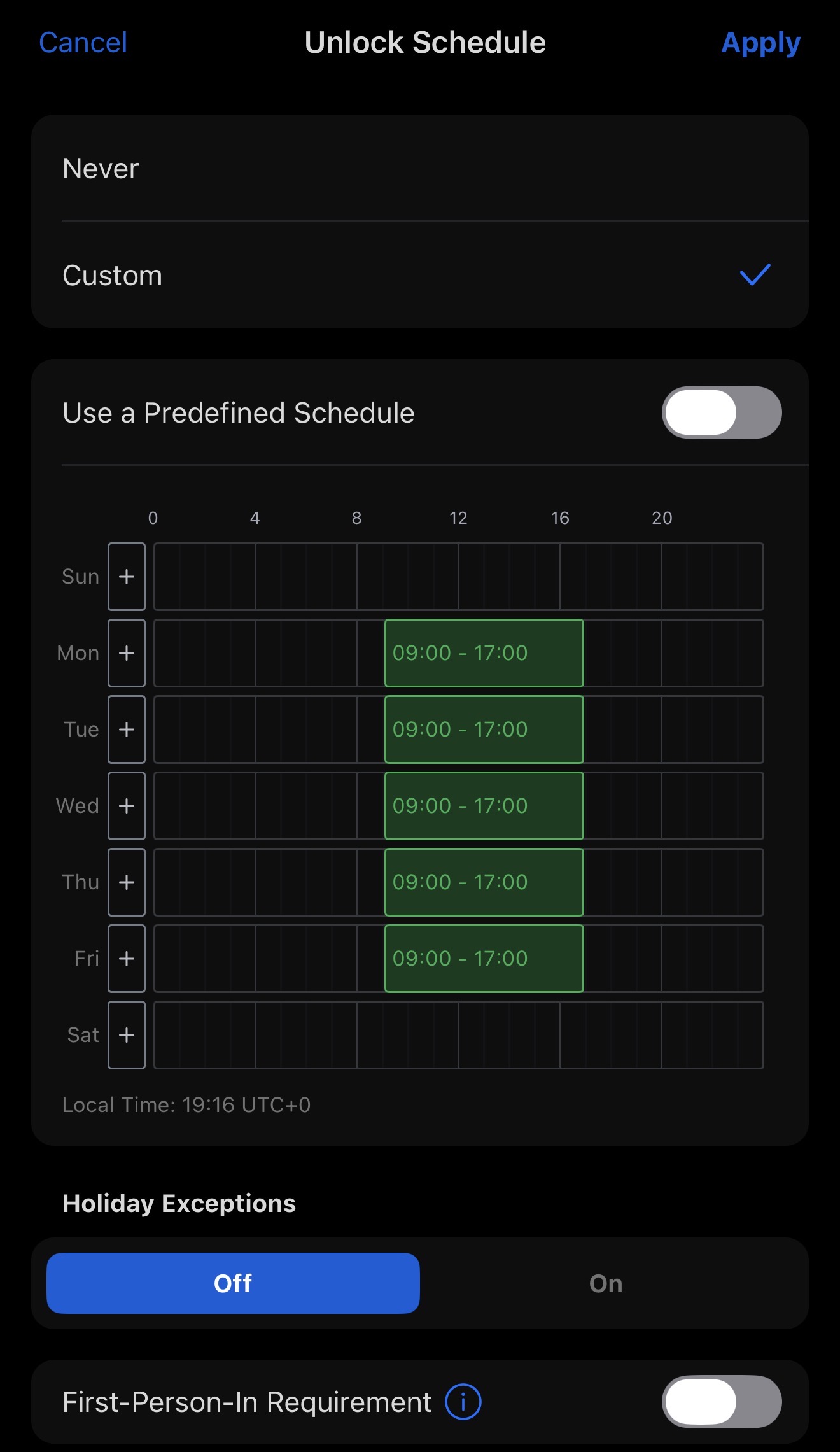
Towards the bottom there is a Holiday Exception option for extended scheduling during holidays, as well as a First Person-In Requirement option. This means the gate will not start its scheduled unlock period until the first person has opened it. For example, if the schedule is set from 9:00 AM to 9:00 PM and a delivery driver arrives at 10:04 AM, once the gate is opened for the driver it will remain unlocked until the end of the schedule, in this case 9:00 PM.
Finalize the schedule by clicking Apply.
The schedule is now active. This same process can be used again in the future to edit the schedule if required.
No comments to display
No comments to display