
Apple Based Touch Pass
To assign yourself a Touch Pass, navigate to Settings (located at the bottom-right of the screen).
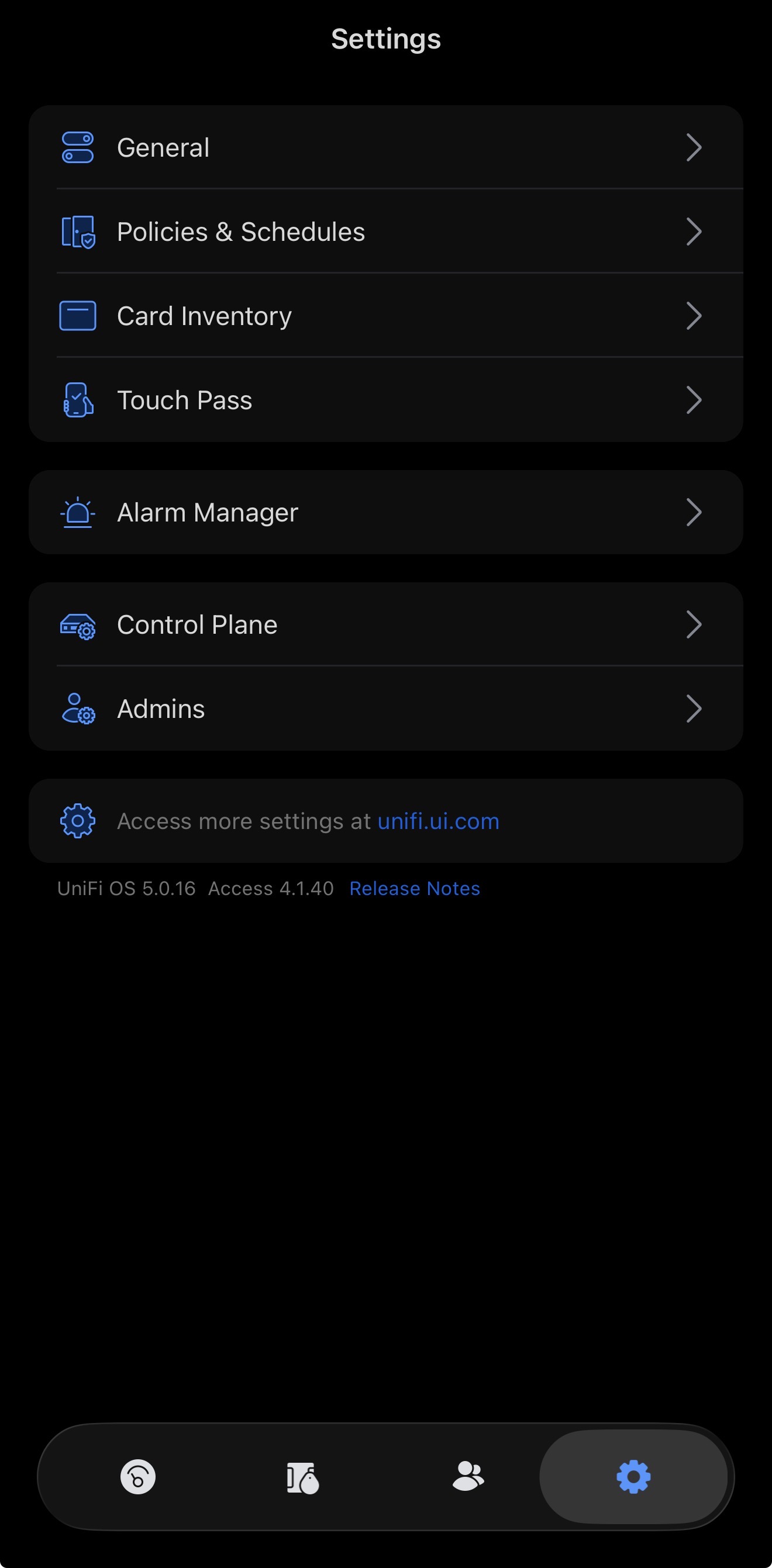
Then select Touch Pass.
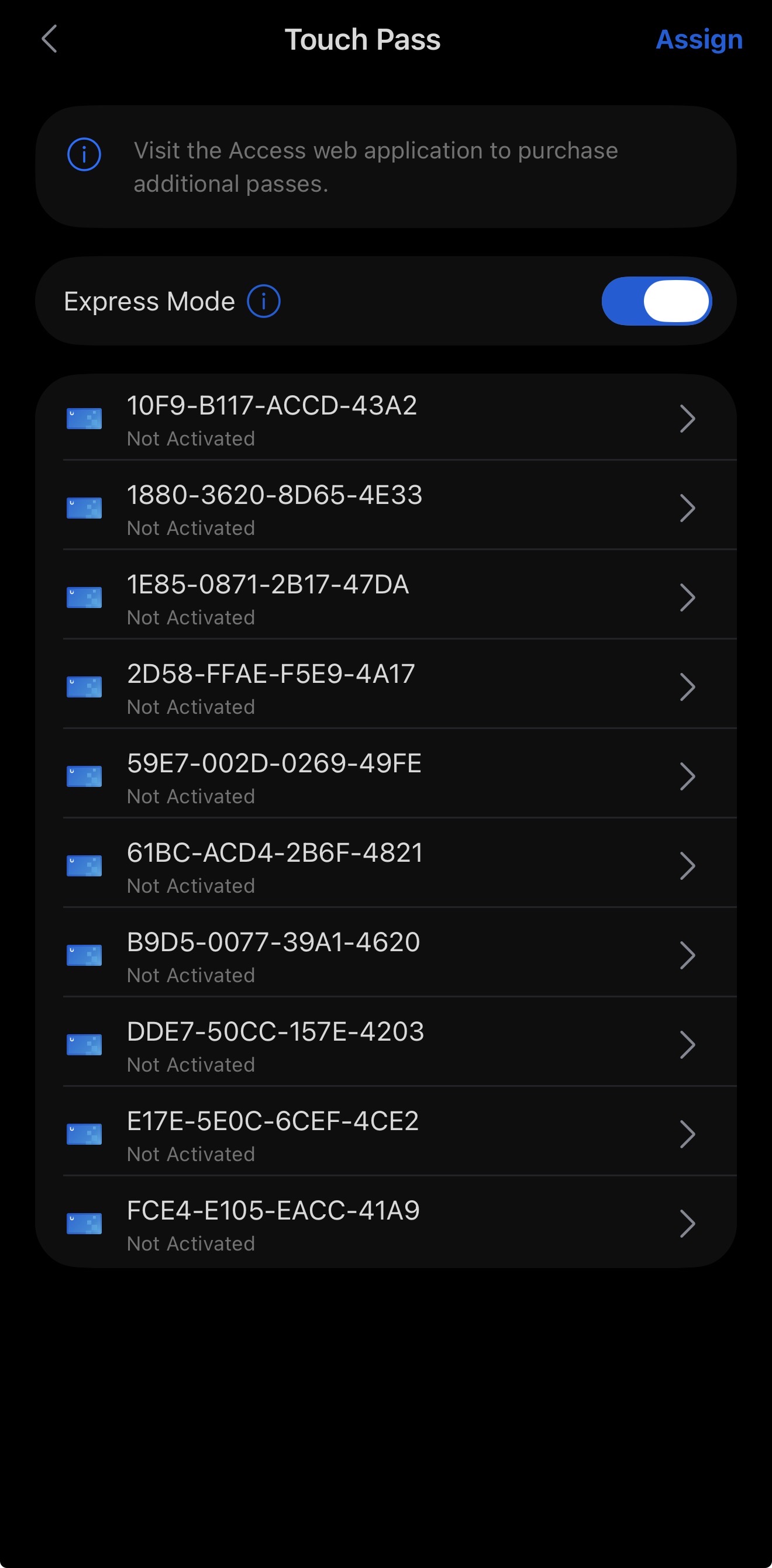
You will then see all of the available Touch Passes that can be activated. By clicking on one of the Touch Pass entries, you can assign it to a user.
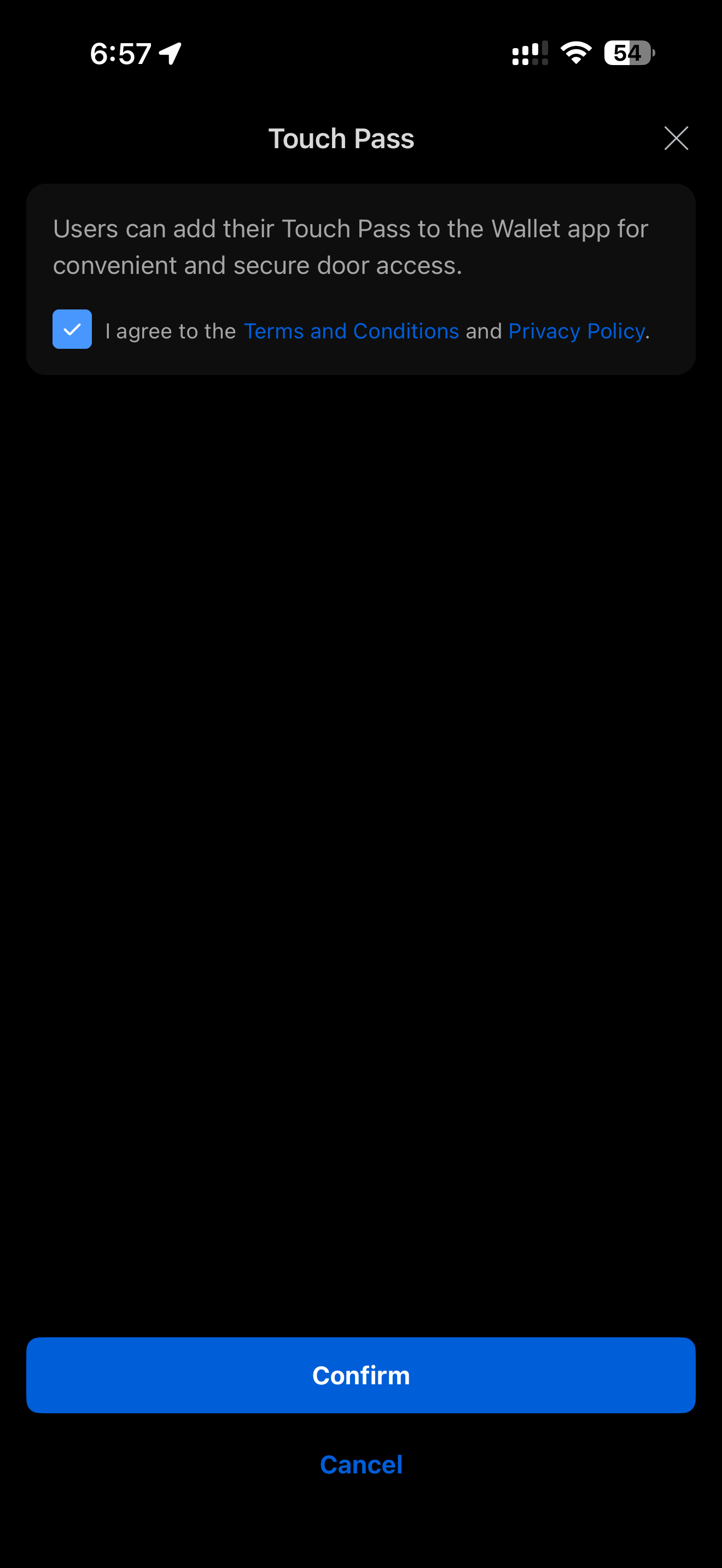
This window will require you to confirm the privacy information related to Touch Pass support.
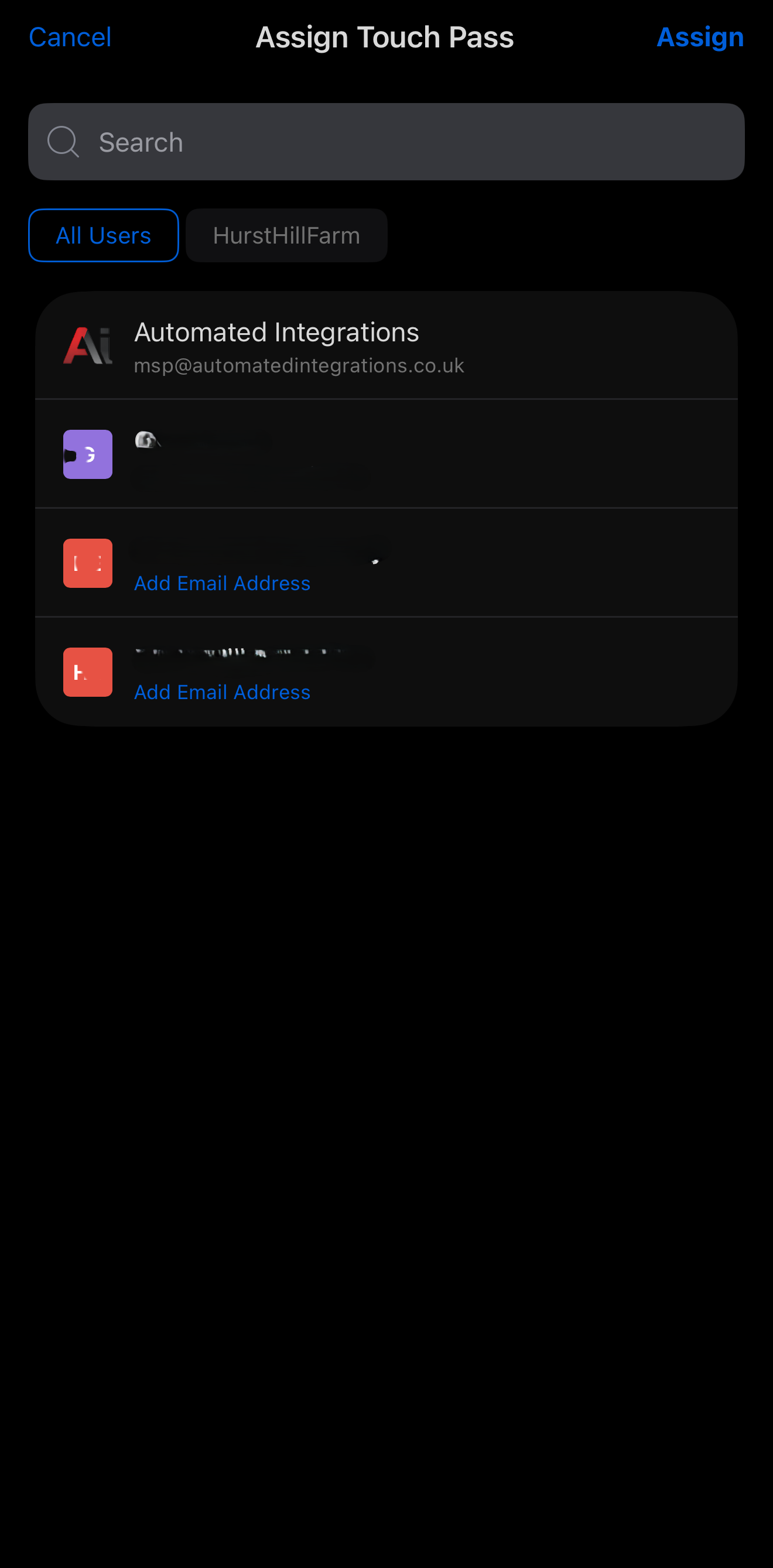
Once assigned (top left button), you will receive an email containing the "Add to Apple Wallet" link.
Once the pass has been added to your device, you can unlock the door or gate directly using Apple Wallet.
Keypads and Reader/Intercoms all support Apple NFC capabilities. This means you can assign a Touch Pass to your phone that works within Apple Wallet. This can then be used to unlock the keypad or Reader/Intercom.
To use it, simply open Apple Wallet as you would when making a payment in a shop, but select the UniFi access card instead. Then present your phone to the center of the reader, keypad, or intercom, and the door or gate will automatically unlock using your phone.
No comments to display
No comments to display