
Removing / Deactivating A User
From the Users Tab, select the user in question.
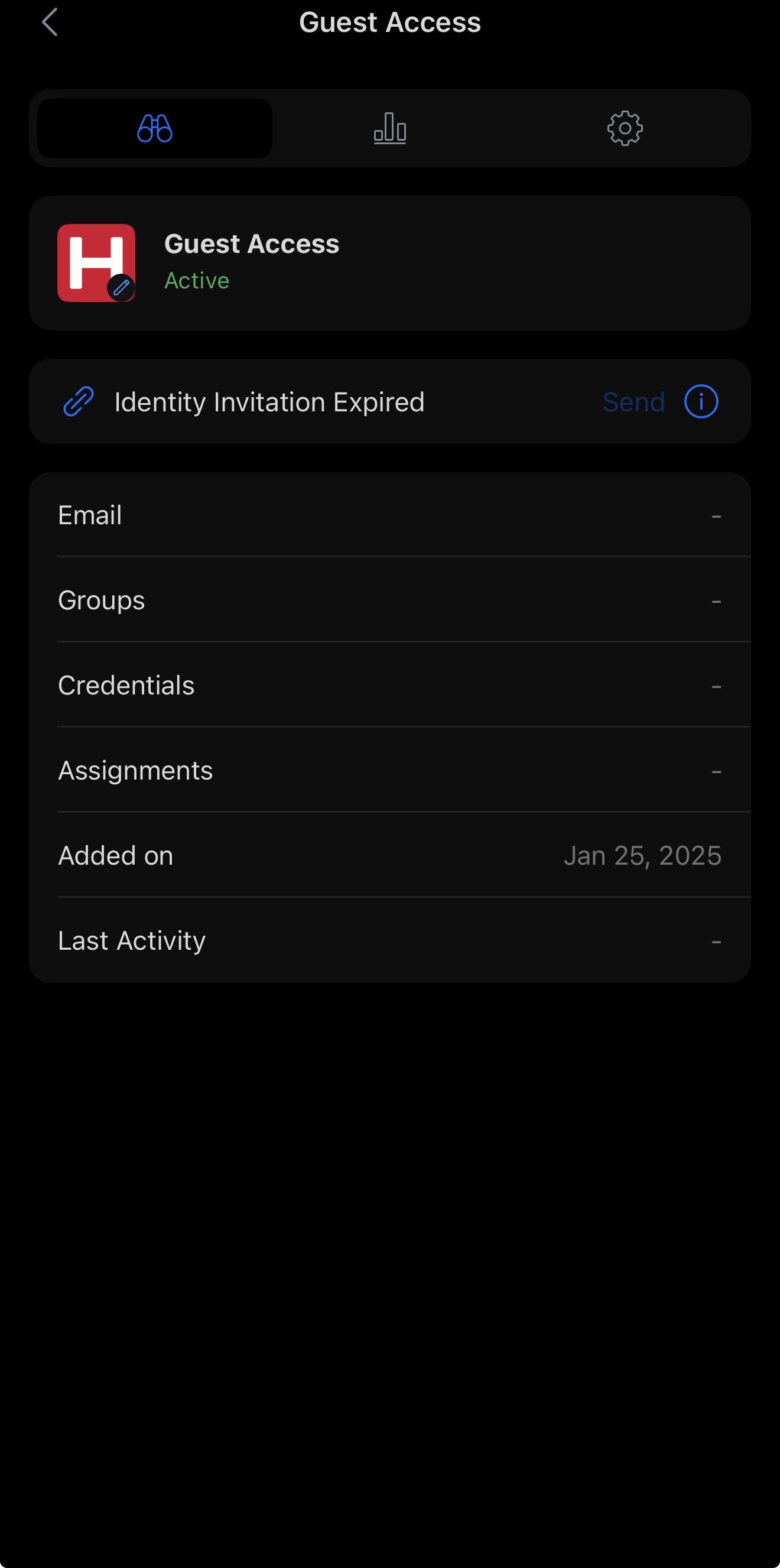
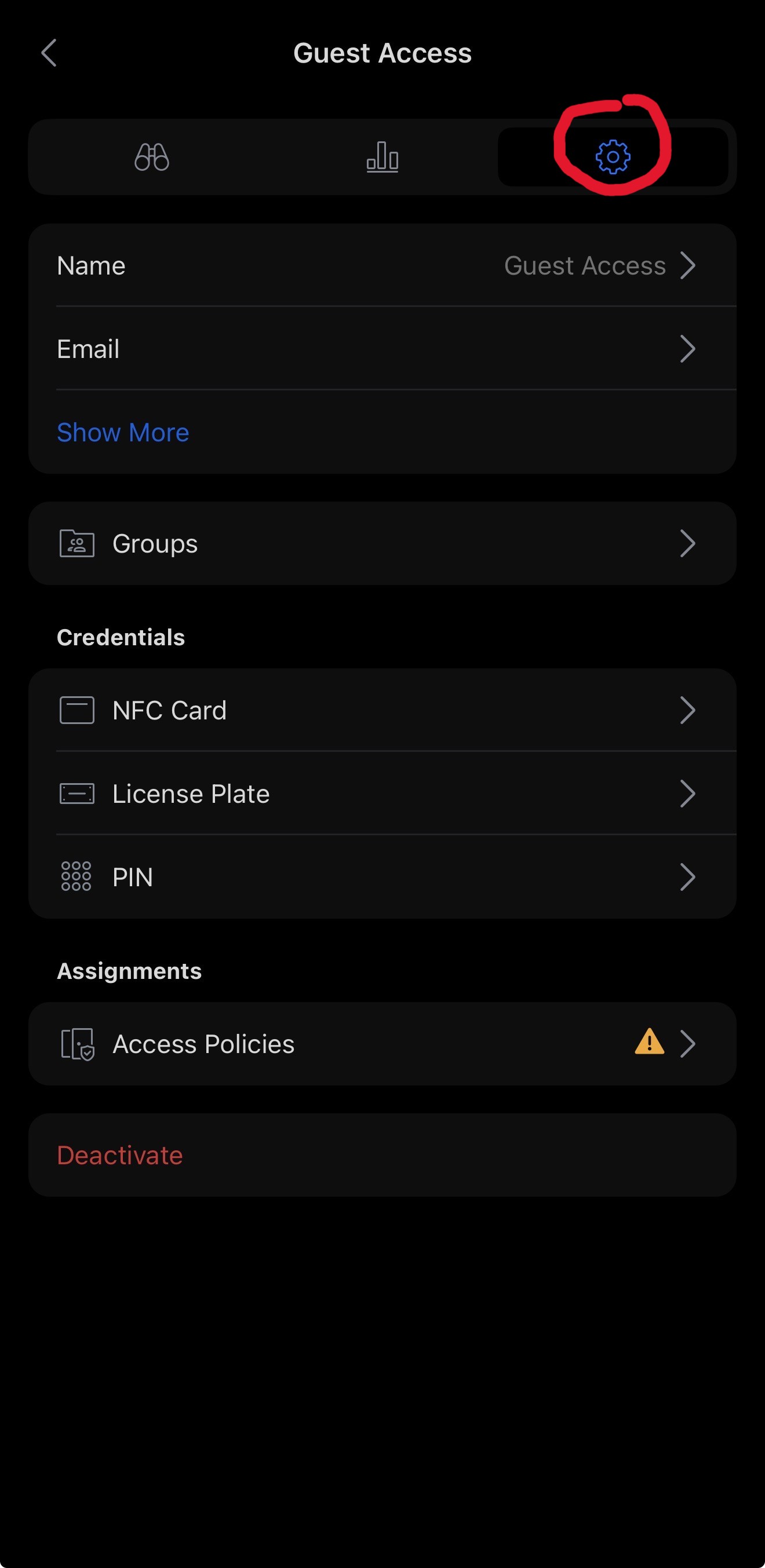
By selecting saidthe Useruser, you will be presentatedpresented with a summary of their profile. To manage the user, navigate to the settings page by clicking the cog icon in the top-right corner of the user,page. headThis towill open the settings page for the user by clkicking the cog in the top right corner of the page which will bring you to the settings that user.
Towards the bottom of the settings page, you will see deactivate.the Deactivate option.
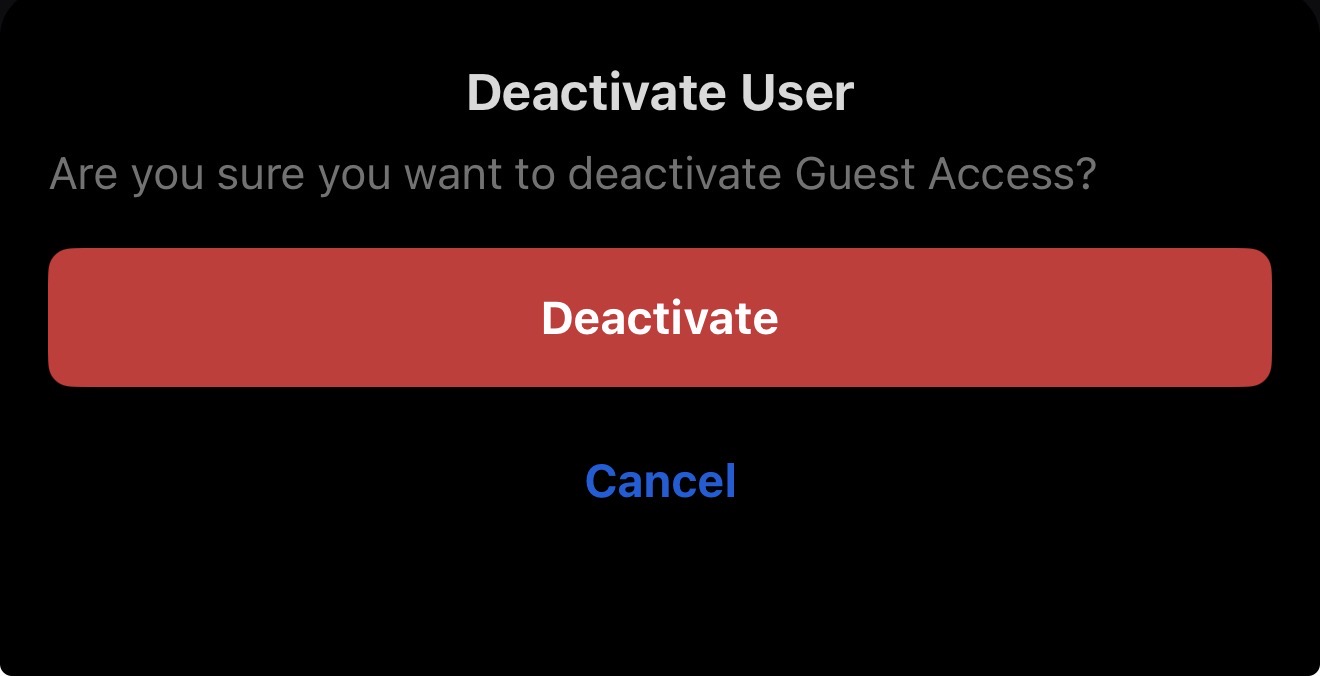
When selecting deactivateDeactivate, you will needbe required to confirm your choice before the user is deactivated.
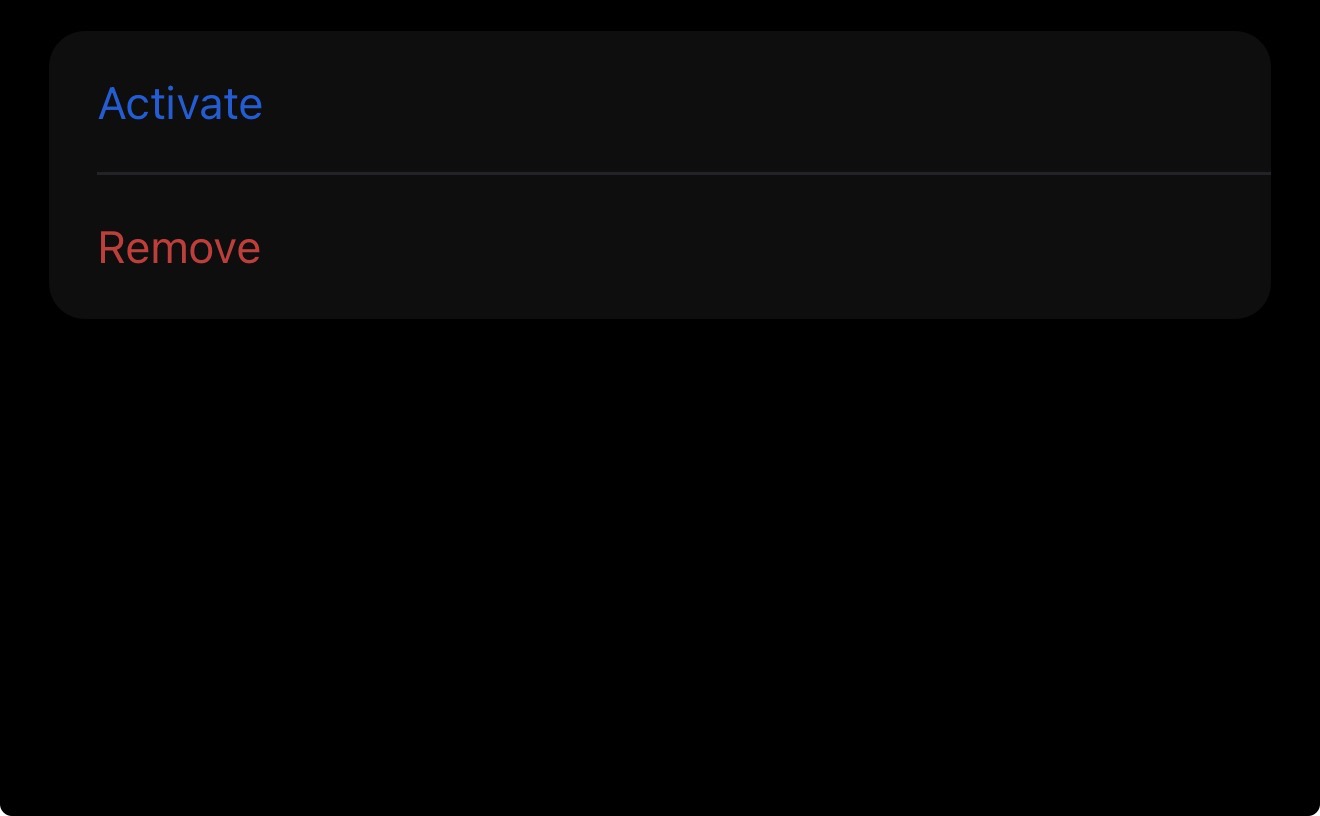
Now thatOnce the user has been deactivated,deactivated, you can either leave themthe profile in this state until the profileit is needed againagain, or you will now be given the option to remove the user.user completely.
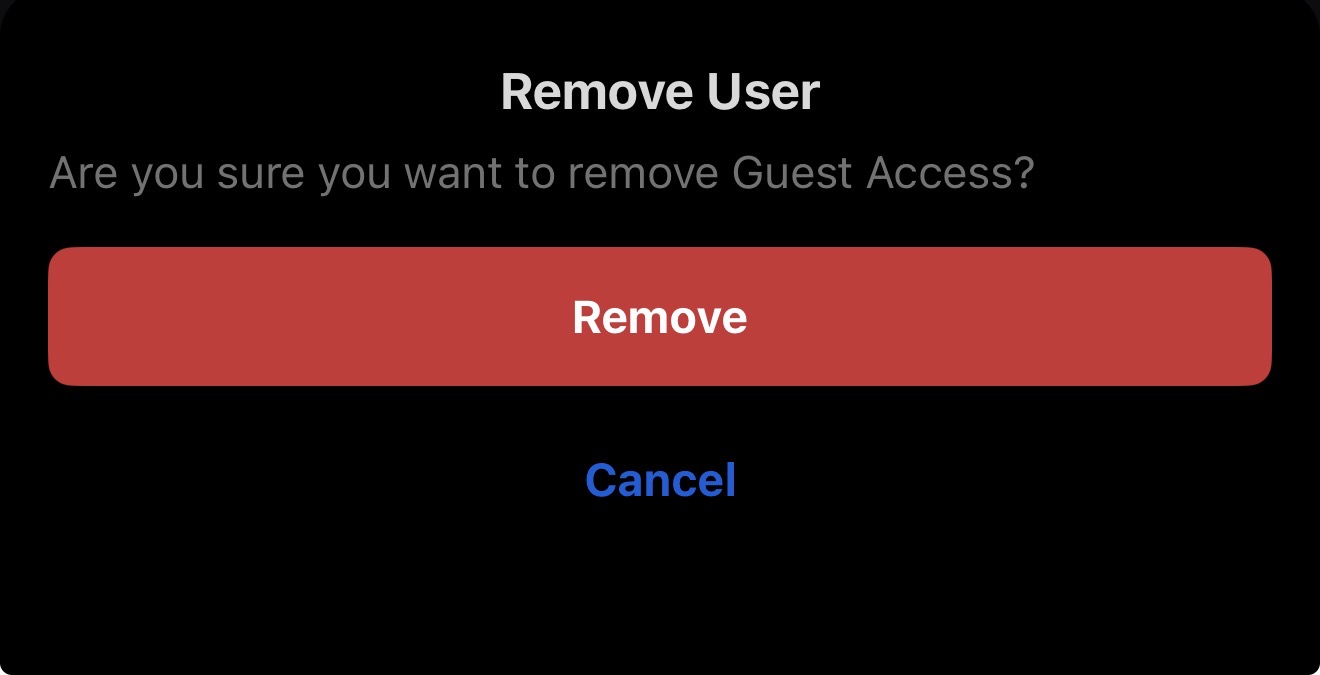
AgainAgain, you will be promtedprompted forto confirm onbefore permanently deleting the useruser.
The user is now Deleted.